
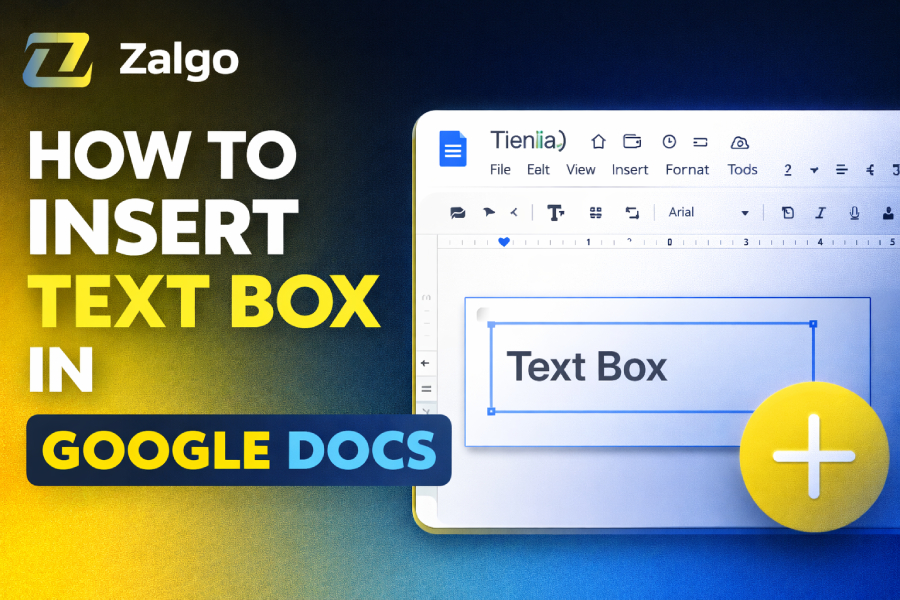
Inserting a text box in Google Docs can help organize your document and improve its overall presentation. This article will guide you step-by-step on how to insert a text box effectively in Google Docs using built-in tools.
Whether you need to highlight a specific piece of information or create a sidebar for additional content, adding a text box is a simple and useful tool to master. Read for more information
Why Use a Text Box in Google Docs?
A text box in Google Docs can serve multiple purposes. It allows you to highlight important content or create a more dynamic layout for your document. When you need to separate content or place additional commentary on the side, a text box helps make your document more readable and engaging.
To get started, you’ll need to access Google Docs’ built-in drawing tools. You can easily insert a text box using these tools located under the “Insert” tab. Simply follow the steps, and you’ll have a neatly formatted text box in your document.
Step-by-Step Guide to Insert a Text Box
Inserting a text box is easy. First, click on the “Insert” menu at the top of your Google Docs screen. From there, choose “Drawing” and then “New”. This will open the drawing interface, where you can add various elements, including a text box.
Once you’re in the drawing tool, click the “Text box” icon, and draw a box of the desired size. You can type the content inside the box once it’s positioned. This allows you to add text in any section of the document without worrying about formatting issues.
To learn more about using shapes and text boxes, you can read about how to make zalgo text.
Adjusting the Size and Position of the Text Box
Once you’ve inserted the text box, it’s crucial to adjust its size and position to match your document’s layout. You can drag the corners of the box to resize it or move it to any location on the page. Google Docs allows you to move the box freely, making it easy to place it where it looks best in the document.
Another useful feature is the ability to adjust the text’s alignment within the box. You can align the text to the left, center, or right, depending on the layout you’re aiming for. To ensure the text box fits well with the rest of your content, you may need to adjust the margins and spacing of the surrounding text.
Styling Your Text Box for Better Visual Appeal
Google Docs offers a variety of options for styling your text box. You can change the border color and thickness, add a background fill, or adjust the box’s opacity. These styling features let you make your text box stand out or blend seamlessly with the rest of your document’s design.
For example, you may want to use a soft background color to highlight key points or a solid border to distinguish the box from the surrounding content. These customization options make it easy to tailor the look of your document to your specific needs.
Using Text Boxes for Sidebars and Notes
Text boxes are not only useful for general content but also for specific applications like sidebars and notes. You can create a sidebar by inserting a narrow text box on the side of the page. This allows you to add additional information, quotes, or references without cluttering the main text.
Additionally, using text boxes for notes or commentary in academic or professional documents can help organize your thoughts and make it easier for readers to find important information.
How to Group Text Boxes with Other Elements
If you’re working on a more complex document, grouping multiple elements together can be helpful. You can group a text box with other elements such as images, shapes, or lines. This is particularly useful when you want to create a custom layout or infographic in your document.
To group elements, select all the items you want to group, then right-click and choose “Group”. This will keep your design organized and prevent accidental misplacement of elements during editing.
Working with Text Boxes on Mobile Devices
Although adding a text box is relatively straightforward on a desktop, it’s also possible to use this feature on mobile devices. However, the process may vary slightly by device. Most users can access the drawing tool on mobile via the Google Docs app, but some options may be limited compared to the desktop version.
For users who rely heavily on mobile editing, it’s important to note that text boxes might not be as flexible on mobile devices. Despite this, the core functionality remains intact, allowing you to create and position text boxes with relative ease.
Tips for Using Multiple Text Boxes in One Document
In some cases, you may need to use multiple text boxes throughout your document. This is especially useful when creating a report or presentation with several distinct sections. It’s important to maintain consistent spacing between each text box to ensure that your document doesn’t appear cluttered.
By keeping the layout simple and consistent, you can effectively use multiple text boxes without overwhelming the reader. Use them sparingly, ensuring that each one adds value to the document.
To see a creative way to work with multiple text boxes in your design, you might find guide on why your messages are glitching helpful.
Conclusion
Inserting and using text boxes in Google Docs can significantly enhance the visual appeal and organization of your document. Whether you’re highlighting key points, adding side notes, or creating complex layouts, text boxes provide a flexible and easy-to-use tool. By following the steps outlined in this article, you can easily incorporate text boxes into your Google Docs documents and take your content creation to the next level.
By experimenting with different styles and layouts, you can make your documents more engaging and easier to read. Whether you’re working on a report, academic paper, or presentation, text boxes are an essential tool for any Google Docs user. Happy editing!
FAQs
How do I insert a text box in Google Docs?
To insert a text box in Google Docs, click on the “Insert” tab, select “Drawing,” and then choose “New.” From the drawing interface, click the text box icon, draw the box, and type your content.
Can I resize the text box in Google Docs?
Yes, you can resize the text box in Google Docs by clicking on it and dragging its corners. This allows you to adjust the size to fit your content and document layout.
How do I style a text box in Google Docs?
You can style a text box in Google Docs by adjusting its border, background color, and text alignment. Use the toolbar in the drawing interface to change the box’s appearance and make it fit your design.
Can I add multiple text boxes in Google Docs?
Yes, you can add multiple text boxes in Google Docs. Simply repeat the process of inserting a drawing and adding a new text box. Arrange them on your document as needed to organize your content.
Is it possible to move a text box in Google Docs?
Yes, you can move a text box by clicking on it and dragging it to the desired location in your document. Google Docs allows free movement of text boxes for easy repositioning.
How do I delete a text box in Google Docs?
To delete a text box, click on it to select it, then press the “Delete” key on your keyboard. Alternatively, right-click the text box and select “Delete” from the context menu.
How do I add text inside the text box in Google Docs?
To add text inside a text box in Google Docs, simply click on the text box once it is inserted. Then, start typing your desired text. You can format it using the toolbar options.
Can I add images inside a text box in Google Docs?
Yes, you can add images inside a text box by inserting an image in the drawing interface. Click “Insert” and choose “Image,” then adjust the image size and position within the text box.
How do I adjust the text alignment in a text box?
You can adjust the text alignment in a text box by selecting the text box, then clicking the alignment options in the toolbar. Choose left, center, or right alignment as per your layout preference.
Can I use text boxes in Google Docs on mobile devices?
Yes, you can use text boxes in Google Docs on mobile devices through the Google Docs app. However, some advanced features like resizing and styling may be limited compared to the desktop version.